Save time by just highlighting with your mouse
Google Translate for Chrome is a free productivity tool that enables you to easily translate while surfing the web. Developed by Google, this handy browser extension lets you simply click on its extension icon to open up a text box and start translating without opening another tab.
Top Recommended Alternative

Google Translate for Chrome simplifies web translation. Just highlight text, and the translation pops up, allowing quick access as you browse. While it may struggle with accuracy, and the icon occasionally doesn’t appear, it remains a convenient tool for unfamiliar languages and is Windows 11 compatible and backwards compatible.
How do I translate in Google Chrome?
Google Translate is a free online service by Google that instantly translates words, phrases, and webpages between English and over 100 other languages. Starting from a dedicated website, it quickly became an integrated service found on Google Search and went on to become a mobile app, as well. While some text and even slang can become lost in the robotic and rigid translations, the beauty of this software is that you can contribute to its catalog and improve the translations yourself.
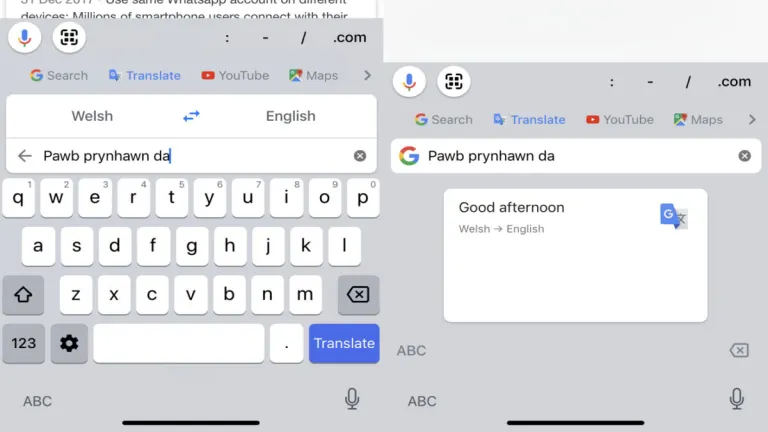
The program allows you to input text any way you want. You can do the old-fashioned way of typing in the words or copy-pasting it to the translation box. You can also do freehand writing—the tool will scan your written characters for familiar symbols in its database to parse your handwriting. However, its most advanced features are the camera scanning, which will take a photo and scan the visible text there, and the speech recognition, which will translate your recorded voice to the selected language.
How do I use Google Translate on my browser?
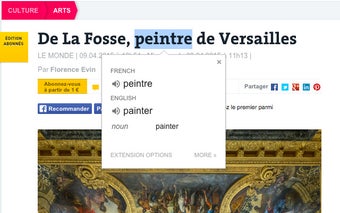
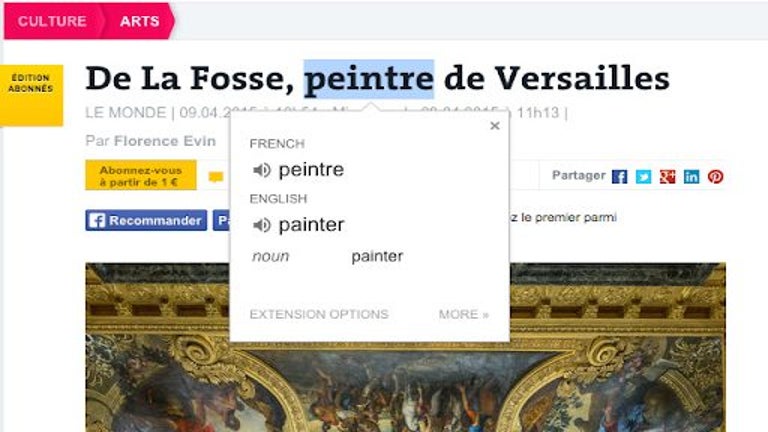
In this browser extension, however, things just stay closer to the typed text. Unlike the original Google Translate, this extension is designed for processing unfamiliar languages quickly while you’re browsing online. You don’t have to open up a new tab for the service, as the extension immediately works when you highlight the text. Simply highlight what you need, and Translate’s icon will pop up where your cursor is. Click on it, and a small box will appear, showing you the translation.
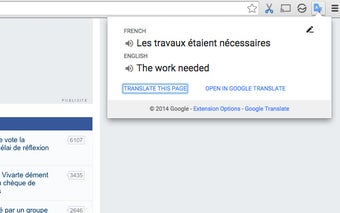
This box will contain the detected language in a drop-down menu. Underneath it is the highlighted text, and then your default language and the translation for it, both with their pronunciations that you can listen to. You can also click “Extension Options” to set your preferred language and choose what the pop-ups should do when you highlight something, and “More” to open a new tab for the Translate website. You can also click on the main extension icon at the search bar to translate the whole webpage.
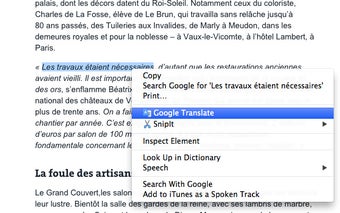
You can even activate this by right-clicking after highlighting and then choosing “Google Translate.” This is handy because sometimes, the icon doesn’t even pop up—especially when the word is next to punctuation, or the extension doesn’t consider it to be in a different language. Similar to the original service, this tool also has a hard time with romanized languages, wherein different writing systems are converted into Roman or Latin scripts so their pronunciations are clear. Due to this, the detected language will also sometimes be incorrect.
Still a handy extension
Overall, Google Translate for Chrome is a great utility program to have whenever you’re surfing online. You’ll come across unfamiliar languages now, so it’s better to have this tool easily accessible with just the help of your mouse cursor. While it could use some work on recognizing the highlighted text and the same-old inaccurate translations, this is still a powerful and intuitive program to have. Moreover, it is also Windows 11 compatible.
Google Translate assists travelers during the FIFA World Cup 2026.
• google translate helps fans in host cities abroad.
• Bridges language gaps for traveling tournament visitors.
• Useful across the three host countries.